

Appearance
Phone numbers & dial codes
For merchants
An SMS can only be sent if Shopware has the customer's mobile number in a usable form. This page explains how the number gets into Shopware, what the plugin adds to your storefront to get it right, and how it cleans numbers up before sending.
1. Ask customers for their phone number
Out of the box, Shopware does not ask for a phone number. Until you switch it on, customers never enter one — and the SMS plugin has nothing to send to.
- Go to Settings → group Customer → Log-in & sign-up.
- Switch on Show phone number (1).
- Recommended: also switch on Phone number field required (2), so no customer can skip it.
- Click Save at the top right.
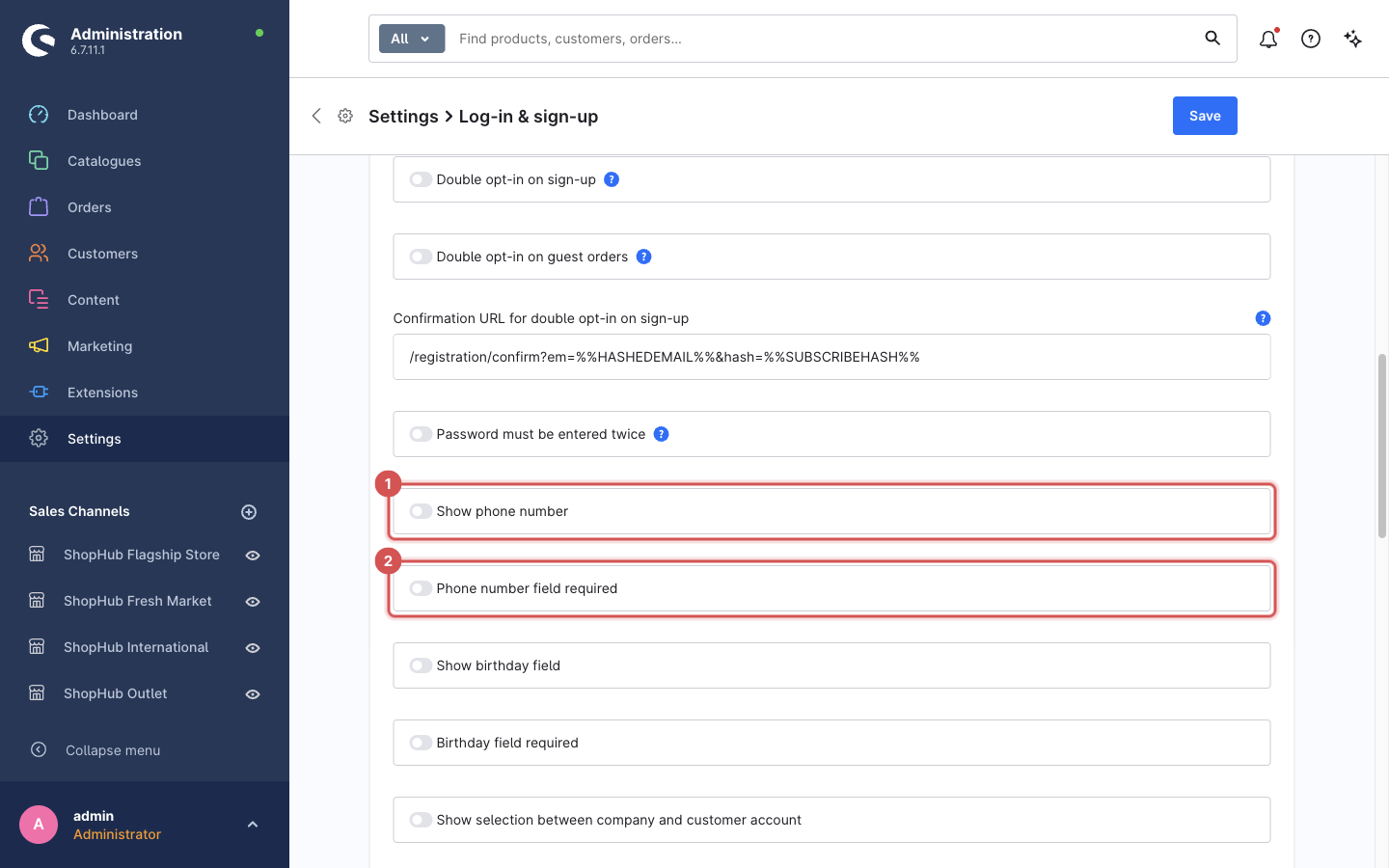
These settings can differ per sales channel: choose the sales channel at the top of the page to change them for one storefront only.
From then on, the phone field appears when customers register, add or edit an address, and check out as a guest. Customers who registered earlier have no number until they add one to their address.
2. The phone field in your storefront
The plugin replaces the plain phone field with two parts: a list of countries with their dial codes, and a box for the number itself. This removes the most common reason an SMS cannot be delivered: a number without its country code.
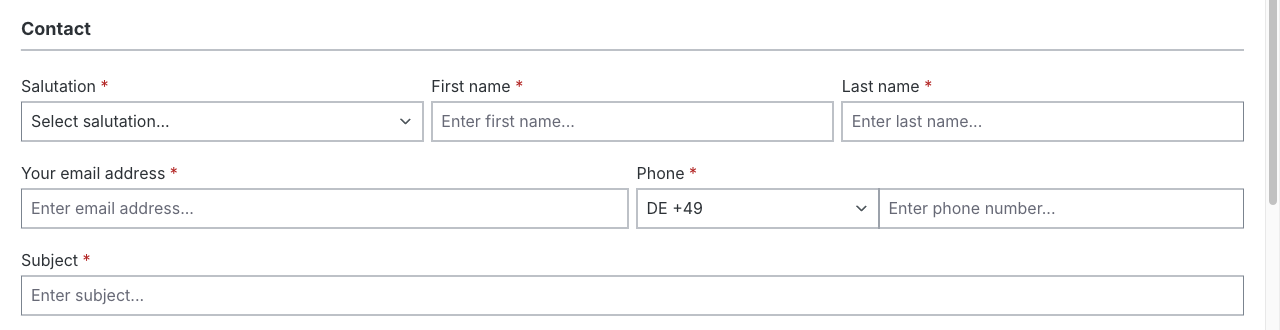
It is used everywhere Shopware shows a phone field: registration, address forms in the customer account, checkout, and phone fields in contact and other forms built with Shopping Experiences.
How it behaves
The country is preselected. The list starts on the country of the sales channel (for example DE +49 for a storefront set to Germany, NG +234 for Nigeria). If the sales channel has no country, the plugin's Default country dial code setting is used. Customers can pick any other country from the list; each entry shows the country code and dial code, e.g. NG +234.

Customers type the number as they know it. Spaces, dashes and a leading zero are fine:

The number is tidied up. When the customer leaves the field, spaces, dashes and the leading 0 are removed. Shopware then saves the full international number, here +2348031234567.

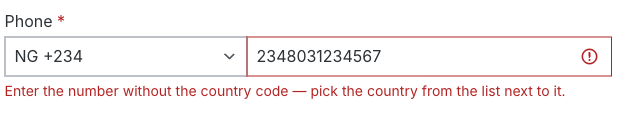
Country code typed twice is caught. If a customer types the country code into the number box (+234…), the field turns red and explains what to do. The form cannot be submitted until it is fixed.
If JavaScript is switched off in the customer's browser, the field falls back to Shopware's normal single phone field.
3. How the plugin reads a number before sending
Numbers already in your shop — entered before the plugin was installed, imported, or typed by staff in the Administration — may not be in international format. Before every SMS the plugin cleans the number:
| Number stored in Shopware | What the plugin sends to | Why |
|---|---|---|
+234 803 123 4567 | 2348031234567 | Spaces and + removed |
00234 803 123 4567 | 2348031234567 | 00 means international, like + |
0803-123-4567 | 2348031234567 | Local number: the leading 0 is replaced by the Default country dial code (234) |
0803 123 4567, but Default country dial code is empty | — skipped | The plugin will not guess a country |
12345 | — skipped | Too short to be a phone number (fewer than 8 digits) |
| empty | — skipped | No number |
"Skipped" means: no SMS for this customer, a note in the plugin's log, and the rest of the flow — including the email — runs normally.
Set the Default country dial code to the country most of your customers are in — see Configuration → SMS routing.
Landlines
The plugin cannot tell a mobile number from a landline. A landline number is sent to the provider like any other and the SMS is simply not delivered (it may still be charged). The phone field's label can remind customers to enter a mobile number: change the text in Settings → Snippets — see Shopware's documentation on snippets.
Checking a customer's number
Open Customers → (customer) and look at the billing address, or open an order and look at its billing address. That is the number the plugin uses: for order messages the order's billing address, for customer messages (registration, password reset) the customer's default billing address. See Shopware's documentation on orders.