

Appearance
Send SMS from a flow
For merchants
Shopware decides when to send messages with the Flow Builder. A flow is a rule of the form: when this happens (the trigger, e.g. "an order is placed") then do this (one or more actions, e.g. "send the order confirmation email").
The SMS plugin adds one action: Send SMS. You add it to a flow next to the existing Send email action, so the customer gets both. Shopware already ships a flow for most important moments; usually you only add the SMS to those.
For everything else Flow Builder can do (conditions, delays, creating new flows), see Shopware's Flow Builder documentation.
What you need first
An active SMS template for the moment you want to text about — see Create an SMS template.
Example: text the customer when an order is placed
1. Open the flow
- Go to Settings → group Automation → Flow Builder.
- You see the list of flows (My flows). Find Order placed — type Order placed into the search bar at the top if the list is long — and click its name.
- Open the tab Flow.
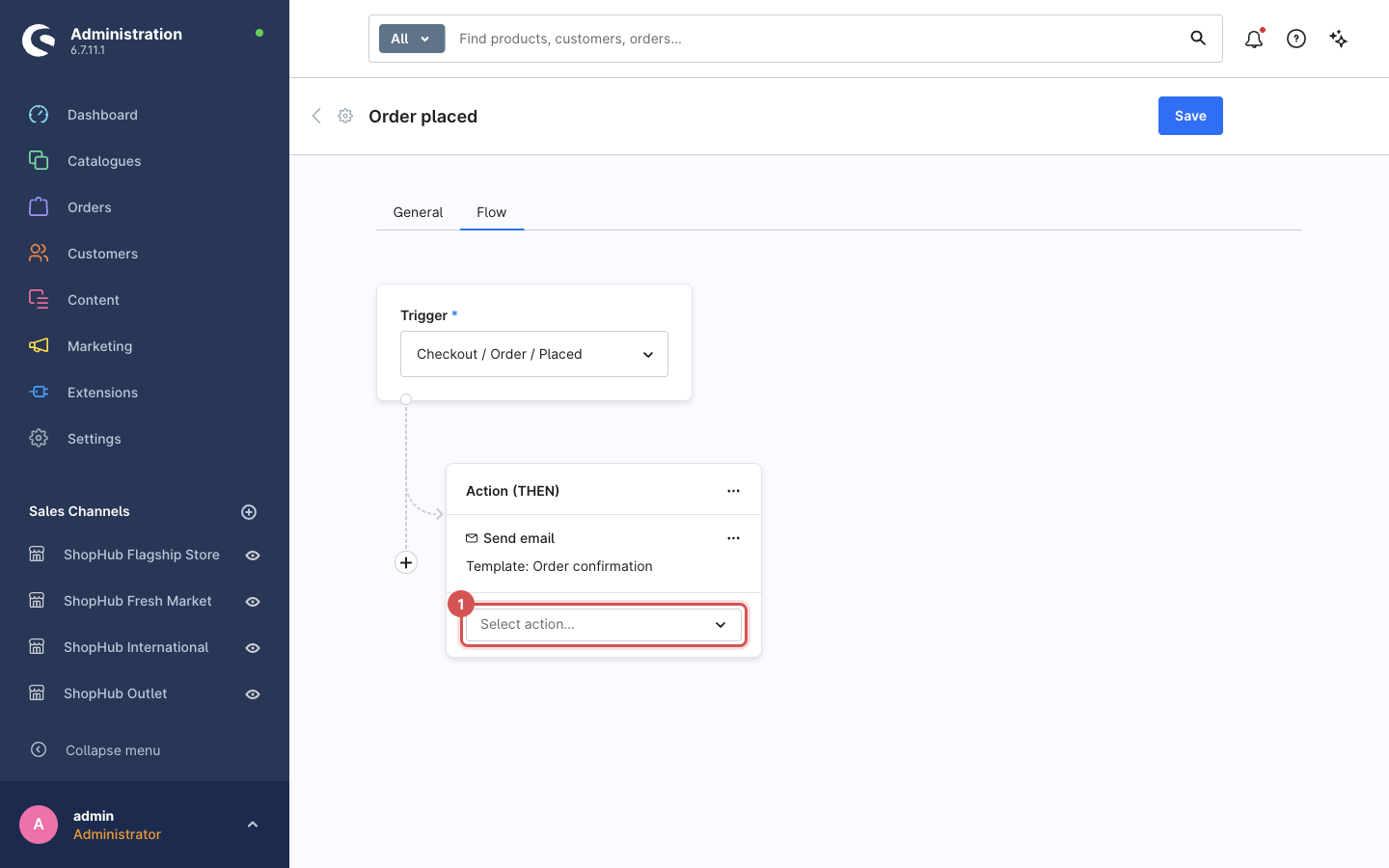
You now see the flow: the Trigger box (Checkout / Order / Placed) and below it an Action (THEN) box that already contains Send email with the template Order confirmation.
2. Add the Send SMS action
- In the Action (THEN) box, click Select action… (1) — below Send email.
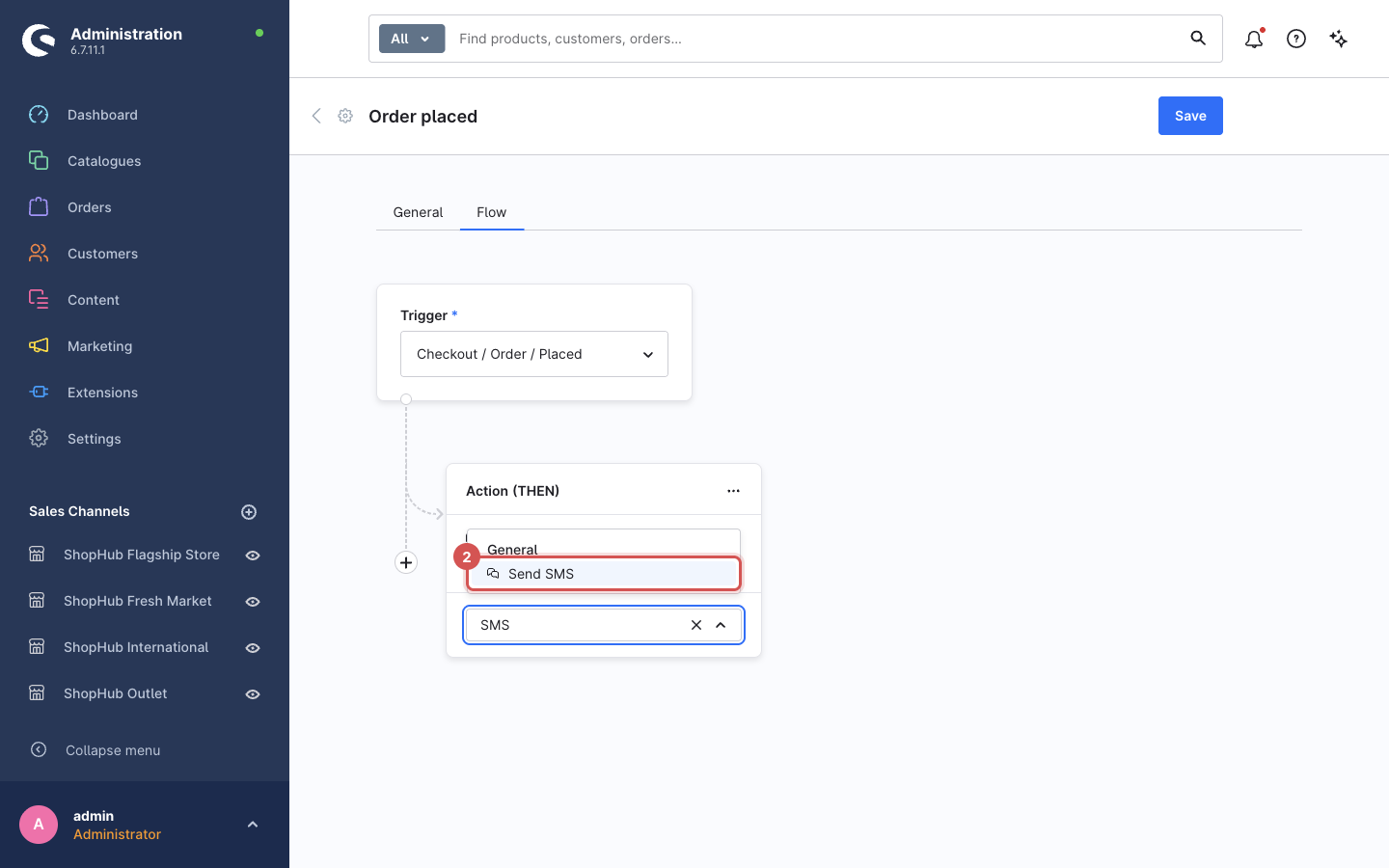
- Type
SMS. The list shows Send SMS (2) in the group General. Click it.
3. Choose the SMS template
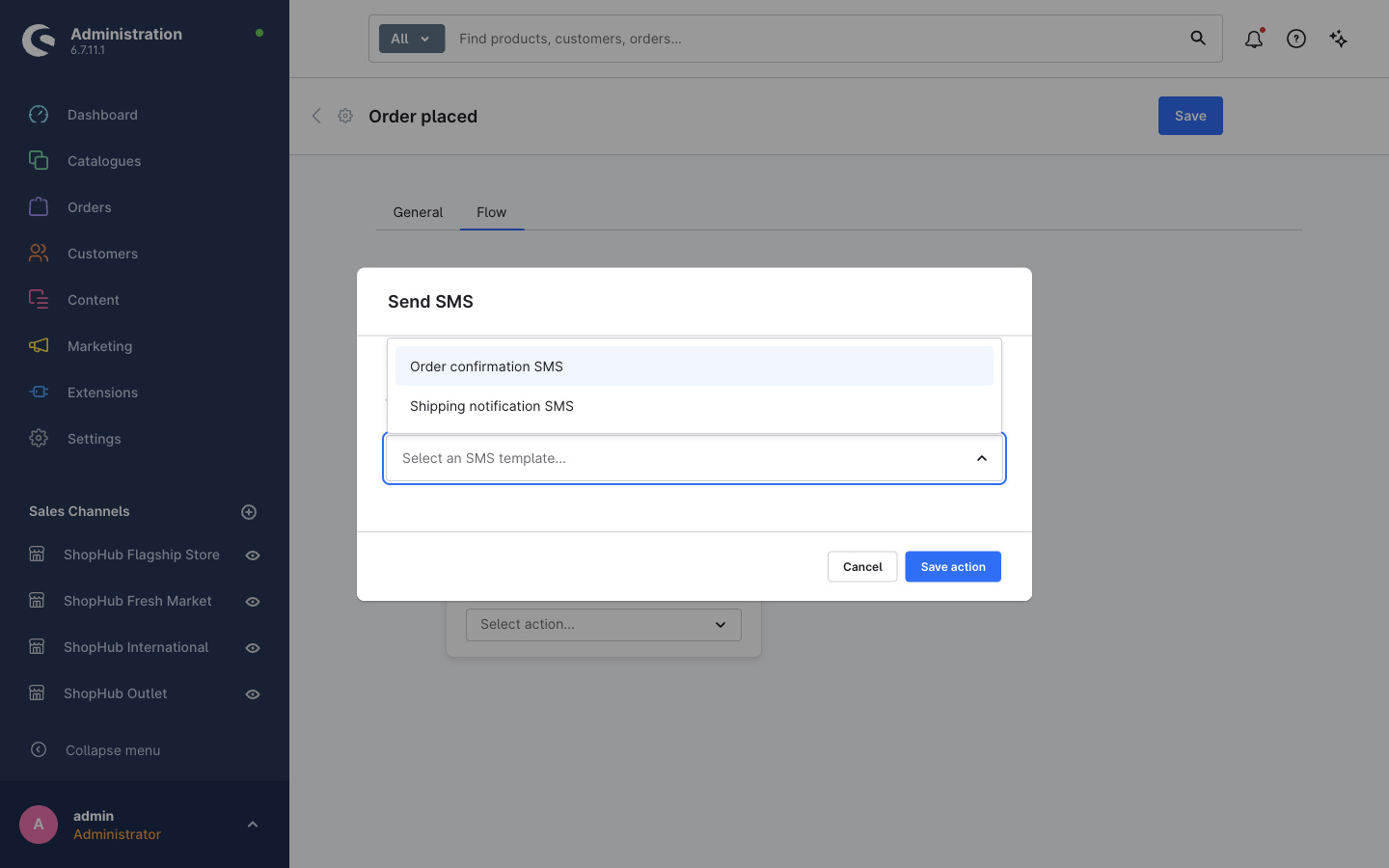
A Send SMS window opens.
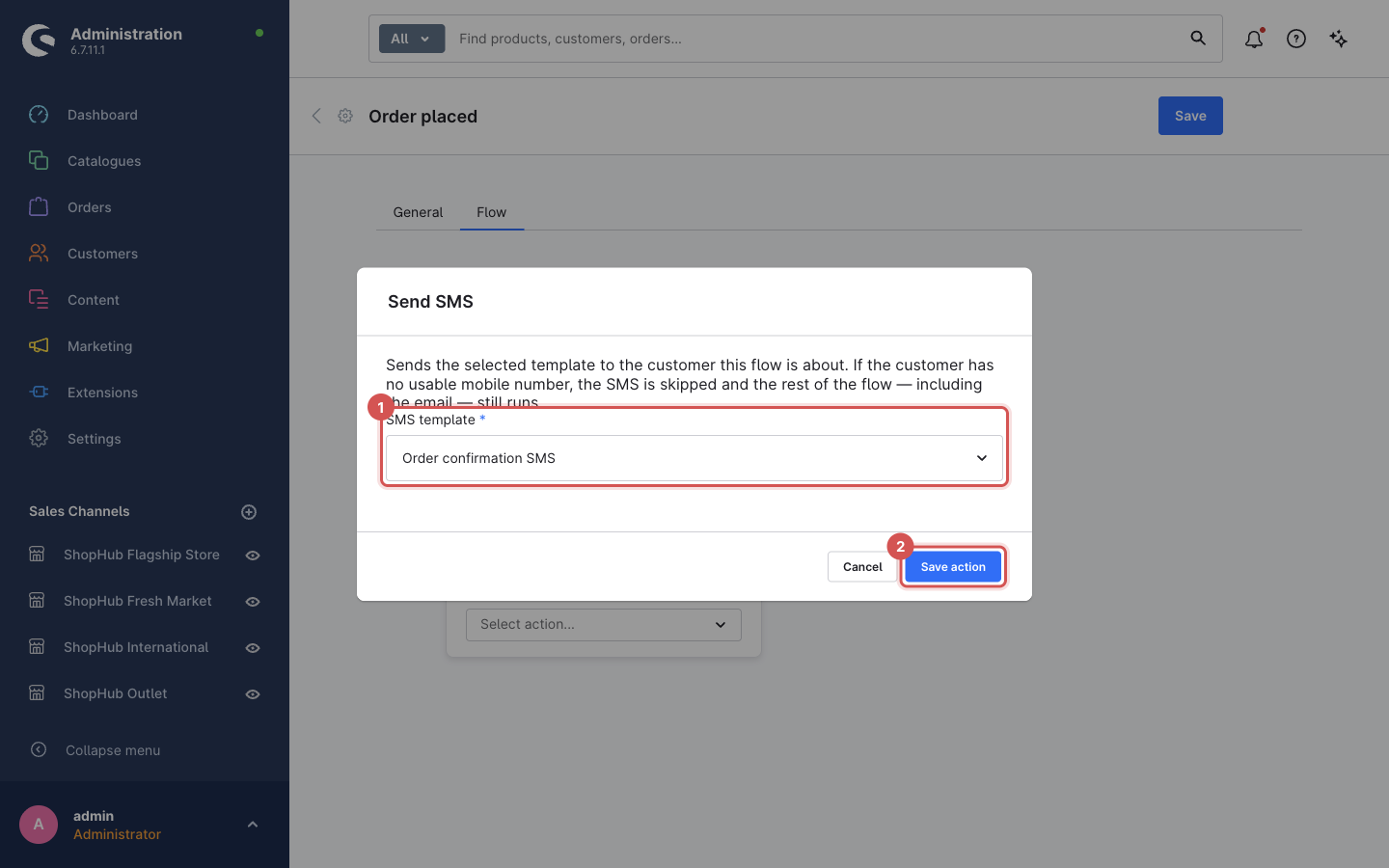
Click SMS template and pick your template — here Order confirmation SMS. The list shows each template's internal name.
Click Save action (2).
4. Save the flow
The Send SMS action (1) now appears under Send email in the same box.
The flow is not saved yet
Adding an action only changes the editor. Click Save (2) at the top right of the page, or the SMS will never be sent. If you leave the page without saving, the change is lost.
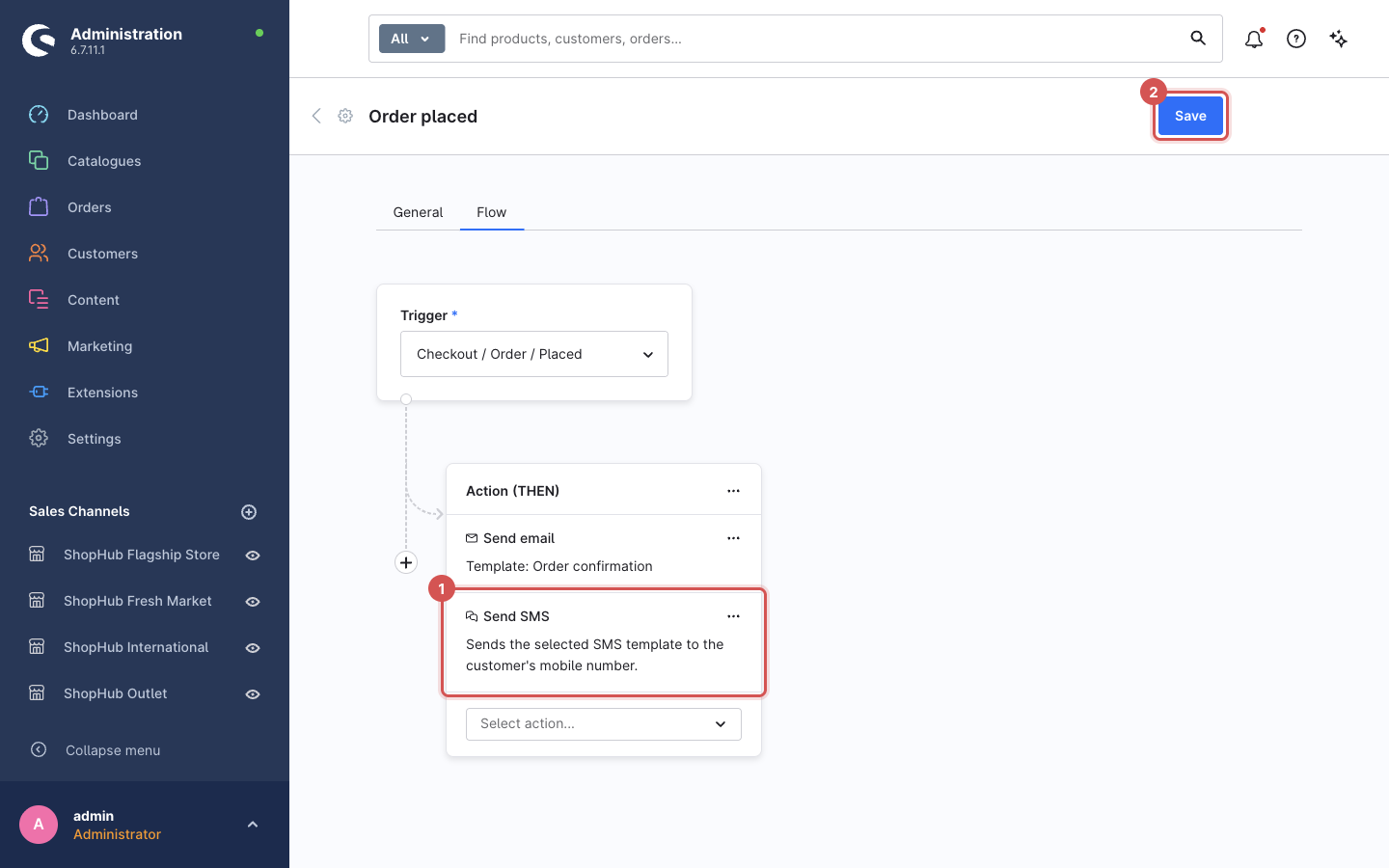
Unlike the email action, the Send SMS box does not show which template it uses. To check or change the template later, click ⋯ on the Send SMS action and choose Edit action. Delete action removes it.
5. Check it works
- Make sure a queue worker runs on your server — SMS are sent in the background. See Installation → Make sure the queue is processed.
- Place a test order in your storefront with your own mobile number in the billing address.
- The SMS arrives within a minute (depending on the queue worker).
If nothing arrives, follow Troubleshooting → No SMS arrives.
Which flows to use
Shopware creates these flows on installation; add Send SMS the same way to each one you want:
| Text the customer when… | Flow (in My flows) | Template event to use |
|---|---|---|
| an order is placed | Order placed | Order confirmation |
| the order is shipped | Shipment enters status shipped | Enter delivery state: Shipped |
| the order is cancelled | Order enters status cancelled | Enter order state: Cancelled |
| the payment is received | Payment enters status paid | Enter payment state: Paid |
| a customer registers | Customer account registered | Customer registration |
| a customer asks to reset the password | Customer requests new password | Customer password recovery |
Flow names can differ slightly between Shopware versions and languages; the trigger shown in the list's Trigger column is what matters. Do not confuse User recovery request sent — that flow is for Administration users, not shop customers.
Delays and conditions
Flow Builder can wait before an action (for example, text 30 minutes after the order) or only act under conditions (only one sales channel, only orders above an amount). Send SMS supports both like any other action. How to set them up: Shopware's Flow Builder documentation.
Who receives the SMS
The SMS goes to the customer the flow is about:
- On order flows (order placed, shipped, paid, …): the phone number on the order's billing address — the number the customer entered at checkout for this order.
- On customer flows (registration, password recovery): the phone number on the customer's default billing address.
If neither contains a usable mobile number, the SMS is skipped and a line is written to the log — the email and every other action still run. How phone numbers are collected and cleaned up is explained in Phone numbers & dial codes.
What if the same flow runs twice?
The plugin remembers each SMS it sent (template + phone number + order or customer) for 24 hours. If Shopware's queue happens to deliver the same message twice — for example after a server restart — the second copy is not sent. A genuinely new event, such as a second order, is always a new message.