

Appearance
Refunds
For merchants
Refund a Paystack payment in full or in part from the order in the Administration. Paystack returns the money to the customer's original payment method. You don't need to log in to the Paystack dashboard.
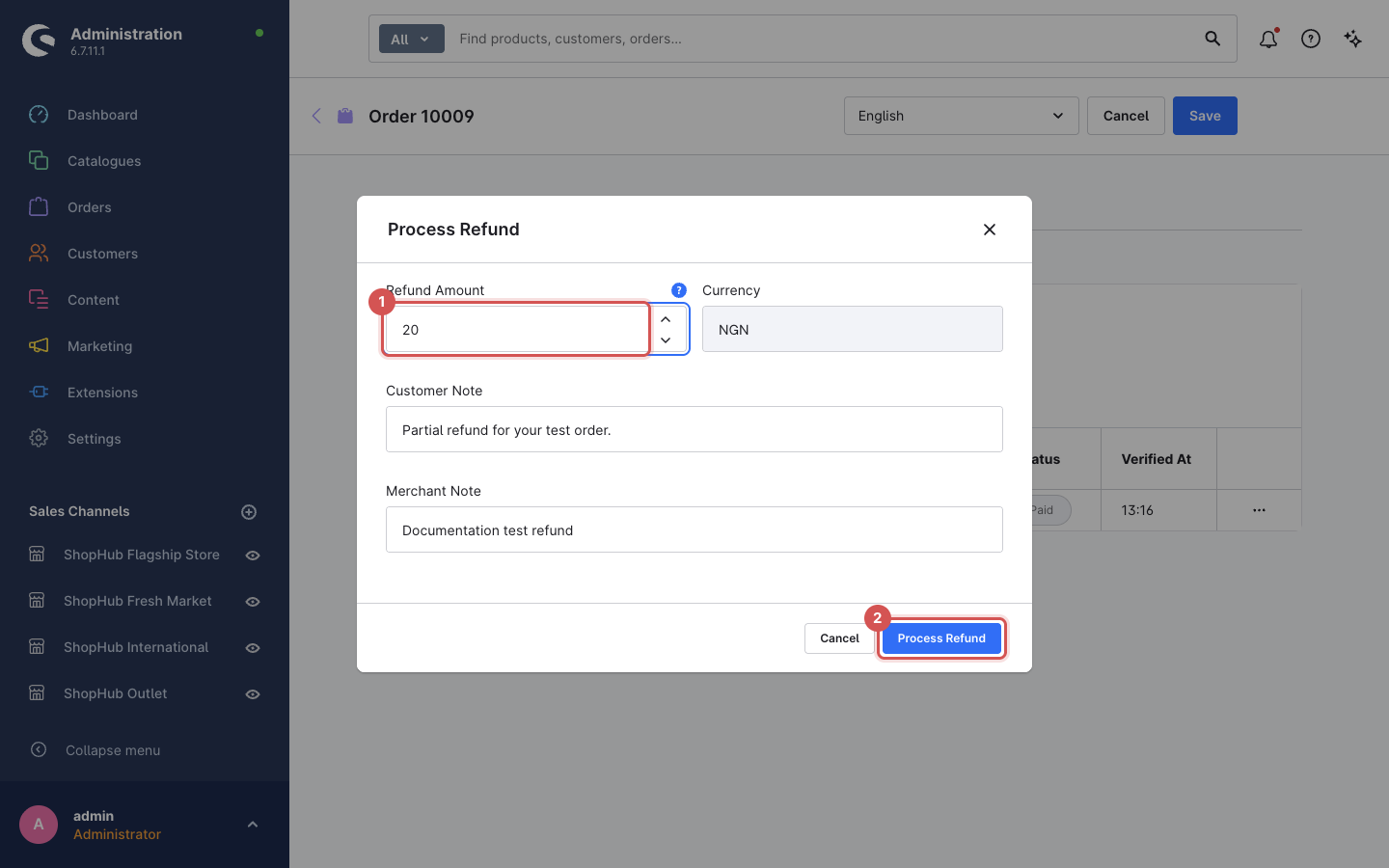
The screenshots show a partial refund of NGN 20 on a NGN 119.99 test order in sandbox mode.
Before you can refund
- Enable Refunds is on in the plugin settings. It is on by default.
- The order was paid with Paystack, and it has not been refunded in full yet.
- The amount left to refund is at least the Minimum Refund Amount.
- You are an Administrator, or your role has the refund permission (below).
- Paystack's webhooks reach your shop (Installation → Register the webhook). Without them the refund is still made at Paystack, but Shopware never records it.
Issue a refund
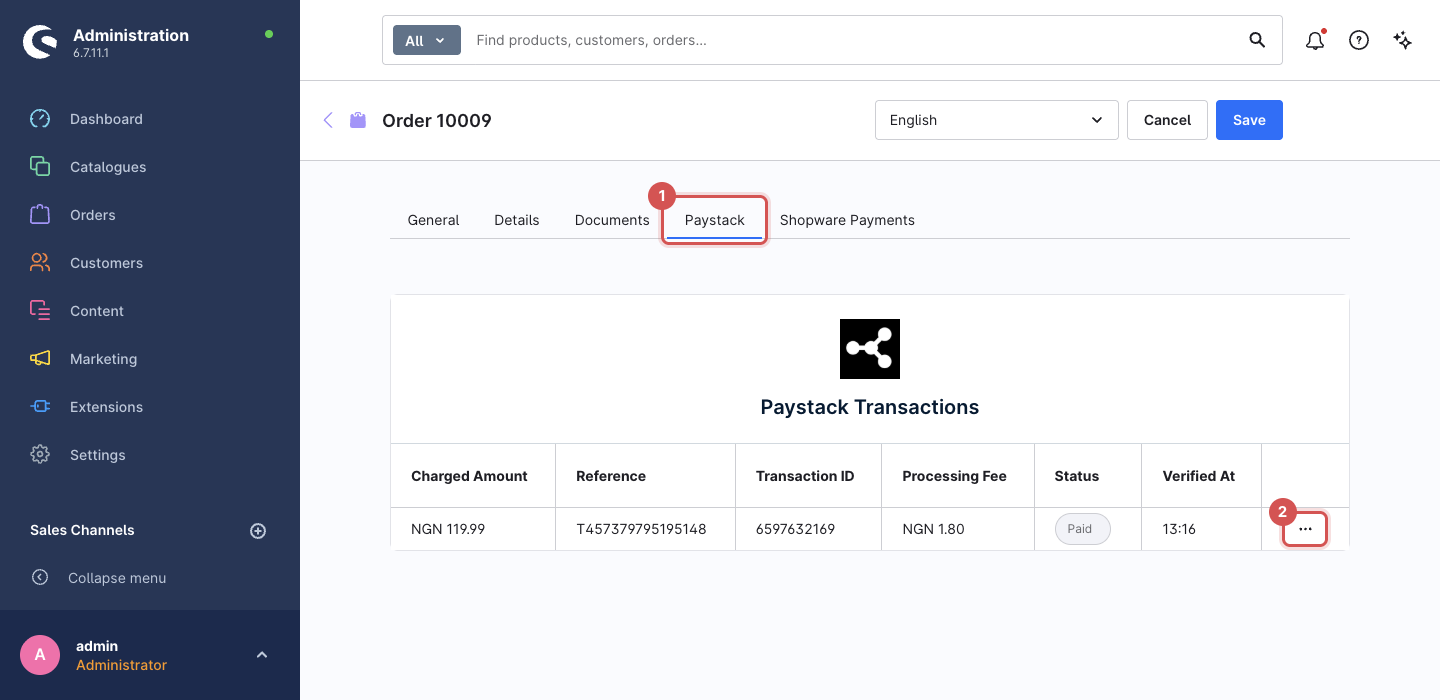
1. Open Orders, then the order, then the Paystack tab. At the end of the transaction row, click ⋯.
2. Click Refund.
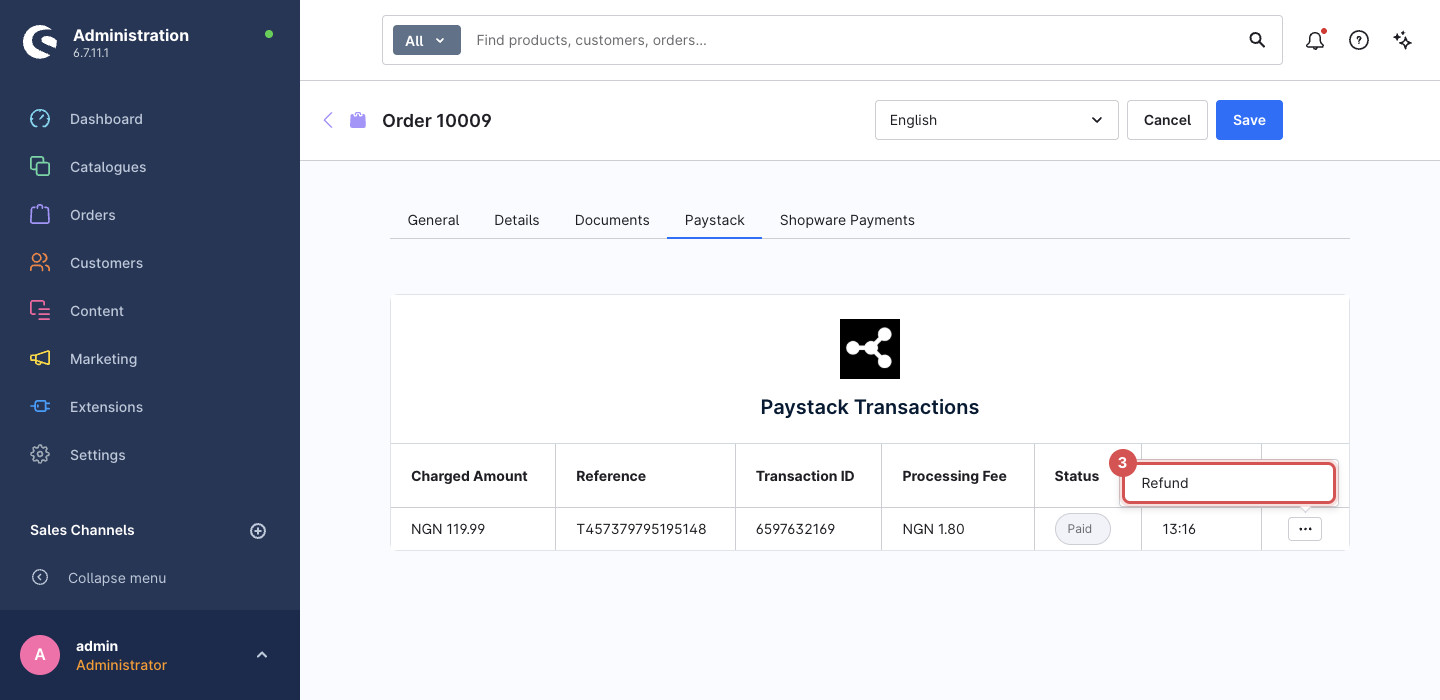
If there is no Refund item, one of the conditions above is not met.
3. The Process Refund dialog opens.
| Field | What to enter |
|---|---|
| Refund Amount | The amount to return, in the order's currency with decimals, e.g. 20 or 2500.50. It is prefilled with the full amount still refundable — overwrite it for a partial refund. |
| Currency | The order's currency. You can't change it. |
| Customer Note | Optional. Paystack stores it with the refund as a note to the customer. |
| Merchant Note | Optional. For your own records in Paystack. |
4. Click Process Refund. When Paystack accepts the refund, the button shows a tick. Close the dialog.
If the amount is too low or too high, a message tells you the limit:
- "The refund amount must be at least …" — below the Minimum Refund Amount.
- "The refund amount cannot exceed …" — more than what is left to refund.
What happens next
Paystack processes the refund in the background and reports progress to your shop with webhooks. You don't need to do anything.
| Stage | What you see in Shopware |
|---|---|
| You click Process Refund | Paystack accepts the request. Nothing changes on the order yet. |
Paystack sends refund.pending | A Captures card appears below the transaction on the Paystack tab. The capture's ⋯ → Refunds lists the refund, in progress. |
Paystack sends refund.processed | The refund is completed. The order's payment status becomes Refunded (full amount) or Partially refunded. |
How long it takes the money to reach the customer depends on the payment channel and bank — see Paystack: Refunds and your Paystack dashboard under Refunds.
In sandbox mode, test refunds follow the same steps but no money moves. Paystack may take a while before it sends the refund webhooks.
Refund recorded at Paystack, but not in Shopware?
If the Paystack dashboard lists the refund but the order shows no refund and stays Paid, the refund webhooks are not reaching your shop. Check the webhook URL for the same mode (test or live) in the Paystack dashboard — see Troubleshooting. Don't refund the same order again: the money has already been returned.
Limits
- Minimum: the Minimum Refund Amount setting. It is entered in the currency's smallest unit — the default
50means NGN 0.50. Paystack does not accept less. - Maximum: what is left — the amount paid minus refunds that are completed or still in progress. Your shop checks this on the server as well as in the form, so it cannot be bypassed.
- A refund reported by a webhook that would exceed the refundable amount, or whose amount doesn't match the refund recorded in Shopware, is rejected and logged.
Who can refund
Administrators can always refund. For other users:
- Open Settings → System → Users & permissions → Roles and edit the role (Shopware: Users & permissions).
- Under Additional permissions → Paystack, tick Process Paystack refunds.
- Shopware also adds Orders → Editor, which the permission needs.
Users without the permission don't see the Refund item.
Turn refunds off
Switch Enable Refunds off in the configuration — for all sales channels, or only for one. The Refund item then disappears from orders in that sales channel. You can still refund in the Paystack dashboard; Shopware records those refunds too, as long as the webhooks arrive.